Every Shopify store eventually needs custom CSS. Whether you are tweaking font sizes, adjusting section spacing, or overhauling the look and feel of your product pages, understanding how and where to add custom styles is fundamental to getting your store looking exactly the way you want.
The problem is that Shopify gives you multiple ways to add CSS, and choosing the wrong approach can lead to styles that break on theme updates, slow down your pages, or create specificity nightmares that become impossible to maintain. After building and maintaining hundreds of Shopify stores, we have seen every CSS mistake in the book.
This guide covers every method available to you, when to use each one, and the patterns that will keep your custom styles clean, performant, and maintainable as your store grows.
Why you need custom CSS on Shopify
Shopify themes are designed to be customisable through the theme editor, but there are always limits. The theme editor gives you control over colours, fonts, spacing, and layout options that the theme developer chose to expose. Everything else requires CSS.
Here are the most common reasons merchants need custom CSS:
- Brand alignment. Your brand guidelines specify exact colours, spacing, and typography that the theme editor cannot match precisely.
- Layout adjustments. Moving elements, changing grid structures, or altering the visual hierarchy of product pages and collection pages.
- Third-party app styling. Apps inject their own HTML into your store, and their default styling rarely matches your theme perfectly.
- Responsive fixes. Addressing mobile layout issues that the theme does not handle well for your specific content.
- Conversion optimisation. Making add-to-cart buttons more prominent, improving the visual flow of your checkout, or highlighting trust signals.
The key is knowing which method to use for each scenario. A small button colour change does not belong in the same place as a comprehensive typography overhaul.
Before you start: essential preparation
Before writing a single line of CSS, there are three things you must do. Skipping any of these will cost you time and potentially break your live store.
1. Duplicate your theme
Always work on a duplicate. In your Shopify admin, navigate to Online Store > Themes, click the three dots next to your live theme, and select Duplicate. Make all your CSS changes on the duplicate first, preview them, and only publish once you are satisfied.
2. Learn your browser's developer tools
Right-click any element on your store and select Inspect (or press F12). The Elements panel shows you the HTML structure, and the Styles panel shows every CSS rule affecting that element. This is where you will spend most of your time when writing custom CSS for Shopify.

The key information you need from dev tools:
- The CSS class names or IDs of the elements you want to style
- The current CSS rules applied to those elements
- The specificity of existing rules (so you know how specific your overrides need to be)
- The file and line number where existing styles are defined
3. Understand CSS specificity
Specificity determines which CSS rule wins when multiple rules target the same element. This is the single most important concept for custom CSS on Shopify, because you are always overriding existing theme styles.
/* Specificity hierarchy (lowest to highest):
   Element selectors:     h1, p, div           (0,0,1)
   Class selectors:       .product-title        (0,1,0)
   ID selectors:          #product-title        (1,0,0)
   Inline styles:         style="color: red"    (1,0,0,0)
   !important:            Overrides everything  (avoid this)
*/

/* BAD: Too broad, will affect every h2 on the site */
h2 { font-size: 24px; }

/* GOOD: Targets only product page titles */
.product__title h2 { font-size: 24px; }

/* BETTER: Uses the theme's own class structure */
.product__title.h1 { font-size: 24px; }
Method 1: Theme editor Custom CSS field
This is the simplest method and the one Shopify recommends for small, section-specific changes. Every Online Store 2.0 theme includes a Custom CSS field in the theme editor.
How to access it
- Go to Online Store > Themes > Customise
- Select the section or block you want to style
- Scroll to the bottom of the section settings
- Find the Custom CSS text field
- Enter your CSS rules
- Click Save
What makes this method special
When you add CSS through the theme editor, Shopify automatically scopes it to that specific section instance. You do not need to write complex selectors because Shopify handles the scoping for you.
/* In the theme editor Custom CSS field, you write: */
.button { background-color: #2D5A27; }

/* Shopify renders it as: */
#shopify-section-template--xxxxx .button {
  background-color: #2D5A27;
}
This is powerful because it means your styles only affect that one section, not every instance of the same section type across your store.
When to use this method
- Small visual tweaks to individual sections
- Adjusting padding, margins, or colours on a single section
- Quick fixes that do not need to be applied globally
- Testing CSS changes before committing them to a stylesheet
Limitations
- Not suitable for global styles that should apply across the entire store
- Difficult to manage when you have many sections with custom CSS
- No syntax highlighting or error checking
- Cannot use @media queries or @font-face declarations in some themes

Method 2: Editing theme asset files
For global styles that need to apply across your entire store, you will need to edit the theme's asset files directly. This gives you full control but requires more care.
Accessing the code editor
- Go to Online Store > Themes
- Click the three dots next to your theme
- Select Edit code
- In the Assets folder, find the main CSS file (usually
base.css,theme.css, orcomponent-*.css)
Most modern Shopify themes split their CSS across multiple files. Dawn, for example, uses a modular structure with files like base.css, component-card.css, section-header.css, and so on. You could add your custom CSS at the end of the relevant file, but this is risky because theme updates will overwrite these files.
The better approach is Method 3.
Method 3: Creating a dedicated custom stylesheet
This is the approach we use on every Shopify project. It keeps your custom CSS completely separate from the theme's core files, making it safe from theme updates and easy to maintain.
Step 1: Create the file
- Go to Online Store > Themes > Edit code
- In the Assets folder, click Add a new asset
- Select Create a blank file
- Name it
customand select.cssas the extension - Click Add asset
Step 2: Link it in your theme
Open layout/theme.liquid and add the following line just before the closing </head> tag:
{{ 'custom.css' | asset_url | stylesheet_tag }}By placing it last in the head, your custom styles will naturally override the theme's default styles without needing excessive specificity or !important declarations.
Step 3: Add your custom CSS
Now open assets/custom.css and start adding your styles. Here is a template structure we recommend:
/* ============================================
   CUSTOM CSS — [Store Name]
   Last updated: 2026-03-16
   ============================================ */

/* ---- Global Typography ---- */

/* ---- Header & Navigation ---- */

/* ---- Product Pages ---- */

/* ---- Collection Pages ---- */

/* ---- Cart & Checkout ---- */

/* ---- Footer ---- */

/* ---- Third-Party App Overrides ---- */

/* ---- Responsive Overrides ---- */
@media screen and (max-width: 749px) {
  /* Mobile-specific overrides */
}

@media screen and (min-width: 750px) and (max-width: 989px) {
  /* Tablet-specific overrides */
}
Why this method is superior
- Update-safe. Theme updates do not touch custom asset files. Your styles persist.
- Single source of truth. All custom styles live in one file, making auditing and debugging straightforward.
- Version control friendly. If you use a custom theme development workflow, a single file is easy to track in Git.
- Performance efficient. One additional CSS file is negligible compared to the performance cost of inline styles scattered across templates.
Method 4: Using Liquid for conditional CSS
Liquid, Shopify's templating language, opens up powerful possibilities for conditional CSS. You can output different styles based on the current page, customer group, or even metafield values.
Page-specific stylesheets
If you have substantial CSS that only applies to certain page types, you can conditionally load it:
{% comment %} In layout/theme.liquid, before </head> {% endcomment %}

{% if template.name == 'product' %}
  {{ 'custom-product.css' | asset_url | stylesheet_tag }}
{% endif %}

{% if template.name == 'collection' %}
  {{ 'custom-collection.css' | asset_url | stylesheet_tag }}
{% endif %}
This keeps your page-specific CSS from loading on pages where it is not needed, which is a small but meaningful performance optimisation for stores with extensive customisations.
Dynamic CSS with Liquid variables
You can also use Liquid to generate dynamic CSS values. This is particularly useful when you want theme settings to control aspects of your custom styling:
{% comment %} In a section's Liquid file {% endcomment %}

{% style %}
  .custom-banner {
    background-color: {{ section.settings.background_colour }};
    padding: {{ section.settings.padding_top }}px 0 {{ section.settings.padding_bottom }}px;
  }

  .custom-banner__heading {
    color: {{ section.settings.heading_colour }};
    font-size: {{ section.settings.heading_size }}px;
  }
{% endstyle %}
Targeting specific pages and templates
Shopify adds template-specific classes to the body element, which makes page-specific CSS straightforward. Understanding this pattern is essential for any serious customisation work.
Template body classes
/* Target only product pages */
.template-product .product-form__buttons .btn {
  background-color: #2D5A27;
  border-radius: 0;
}

/* Target only collection pages */
.template-collection .collection-hero {
  min-height: 300px;
}

/* Target the homepage */
.template-index .hero__heading {
  font-size: 3.5rem;
}

/* Target the cart page */
.template-cart .cart__footer {
  border-top: 2px solid #2D5A27;
}
Targeting specific product or collection handles
For even more granular control, you can use Liquid to output the current handle as a body class. Add this to your theme.liquid body tag:
<body class="template-{{ template.name }}
  {% if template.name == 'product' %} product-{{ product.handle }}{% endif %}
  {% if template.name == 'collection' %} collection-{{ collection.handle }}{% endif %}">
Then target specific products or collections in your CSS:
/* Style a specific product page */
.product-premium-leather-bag .product__price {
  font-size: 2rem;
  color: #8B4513;
}

/* Style a specific collection page */
.collection-sale .collection-product-card {
  border: 2px solid #e74c3c;
}
Working with CSS custom properties
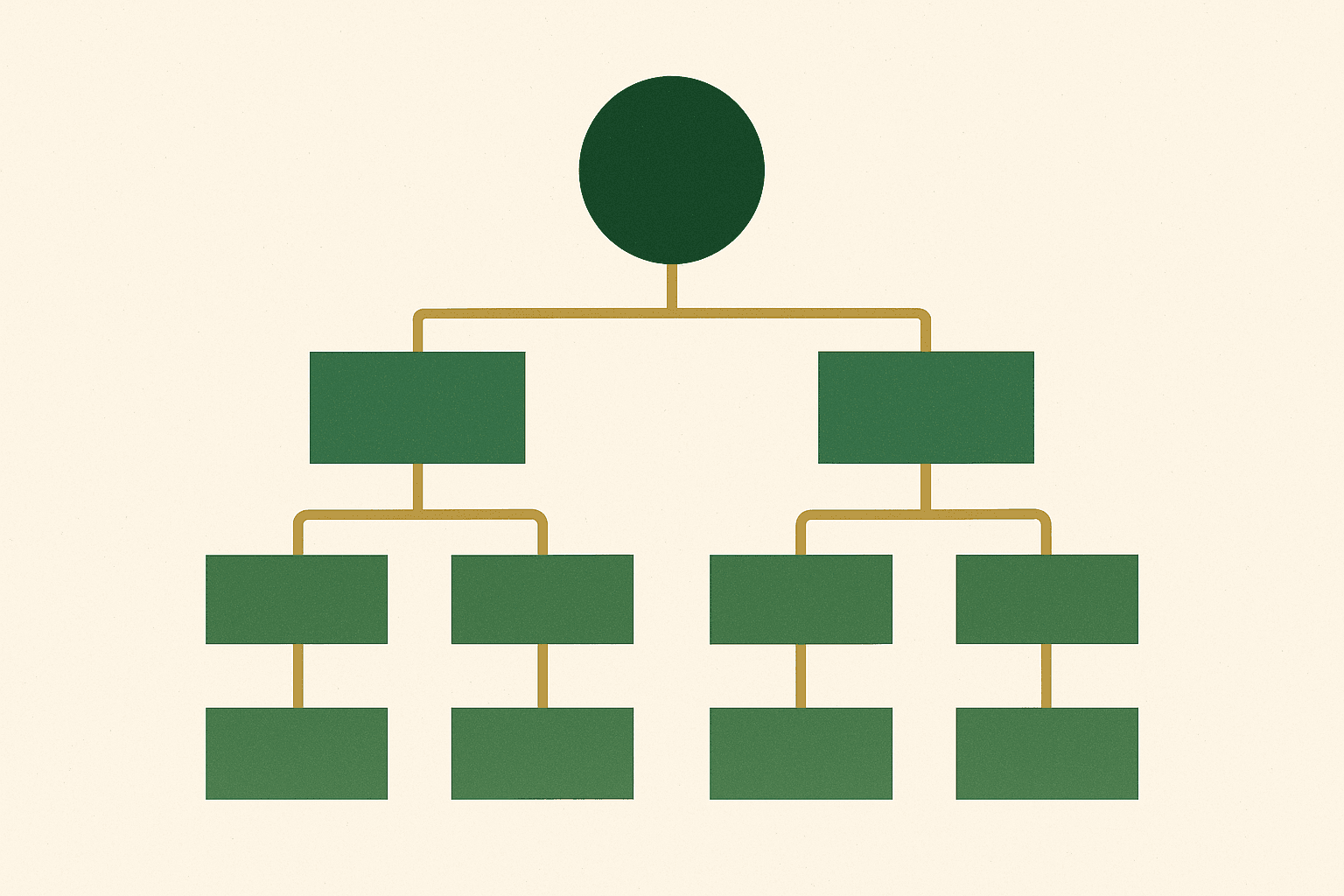
Modern Shopify themes use CSS custom properties extensively. Dawn and its derivatives define variables for colours, fonts, spacing, and more on the :root element. Understanding and leveraging these variables is the most efficient way to make sweeping visual changes.
/* Override theme CSS variables globally */
:root {
  --color-base-text: #1a1a1a;
  --color-base-background: #fafaf8;
  --color-base-accent-1: #2D5A27;
  --font-heading-family: 'Fraunces', serif;
  --font-heading-weight: 600;
  --font-body-family: 'DM Sans', sans-serif;
  --page-width: 1200px;
  --spacing-sections-desktop: 36px;
  --spacing-sections-mobile: 24px;
}

/* Use variables in your custom CSS */
.custom-announcement-bar {
  background-color: var(--color-base-accent-1);
  color: var(--color-base-background);
  font-family: var(--font-body-family);
  padding: var(--spacing-sections-mobile) 0;
}
This approach is powerful because changes to the variables cascade through every rule that references them. Change --color-base-accent-1 once, and every element using that variable updates automatically.
Responsive design techniques
Shopify themes use specific breakpoints for responsive design. When writing custom CSS, you need to match these breakpoints to ensure your styles integrate seamlessly with the theme's responsive behaviour.
Common Shopify theme breakpoints
/* Dawn theme breakpoints */
@media screen and (max-width: 749px) {
  /* Mobile */
}

@media screen and (min-width: 750px) and (max-width: 989px) {
  /* Tablet */
}

@media screen and (min-width: 990px) {
  /* Desktop */
}

/* Some themes also use: */
@media screen and (min-width: 1200px) {
  /* Large desktop */
}
Mobile-first custom CSS
We always recommend writing mobile-first CSS for Shopify stores. This means your base styles target mobile devices, and you use min-width media queries to add complexity for larger screens:
/* Base: mobile styles */
.custom-grid {
  display: grid;
  grid-template-columns: 1fr;
  gap: 16px;
  padding: 0 16px;
}

/* Tablet and up */
@media screen and (min-width: 750px) {
  .custom-grid {
    grid-template-columns: repeat(2, 1fr);
    gap: 24px;
    padding: 0 32px;
  }
}

/* Desktop and up */
@media screen and (min-width: 990px) {
  .custom-grid {
    grid-template-columns: repeat(3, 1fr);
    gap: 32px;
    max-width: var(--page-width);
    margin: 0 auto;
    padding: 0 48px;
  }
}
Performance considerations
CSS itself is rarely a significant performance bottleneck, but poorly managed custom CSS can contribute to slower rendering and worse Core Web Vitals scores. Here is how to keep your styles lean. For a deeper dive into performance, read our guide to Shopify customisation and scripts.
Keep your CSS file size small
A well-written custom CSS file for a Shopify store should rarely exceed 15-20KB. If yours is significantly larger, you are probably overriding too many theme defaults and should consider whether a custom theme build would be more appropriate.
Avoid render-blocking patterns
/* BAD: Forces the browser to recalculate layout */
.product-card {
  width: calc(100% / 3 - 20px) !important;
  float: left !important;
  margin: 10px !important;
}

/* GOOD: Uses modern CSS that the browser can optimise */
.product-grid {
  display: grid;
  grid-template-columns: repeat(3, 1fr);
  gap: 20px;
}
Minimise the use of !important
Every !important declaration is a sign that your CSS architecture has a specificity problem. Instead of reaching for !important, increase your selector specificity:
/* BAD: Using !important */
.btn { background-color: #2D5A27 !important; }

/* GOOD: Using higher specificity */
.template-product .product-form .btn {
  background-color: #2D5A27;
}

/* ALSO GOOD: Doubling the class for extra specificity */
.btn.btn { background-color: #2D5A27; }
Common CSS customisations with code
Here are production-ready CSS snippets for the most frequently requested Shopify customisations. These have been tested across Dawn and other popular Online Store 2.0 themes.
Custom announcement bar
.announcement-bar {
  background-color: #2D5A27;
  color: #ffffff;
  font-weight: 500;
  letter-spacing: 0.05em;
  text-transform: uppercase;
  font-size: 0.75rem;
  padding: 8px 0;
}

.announcement-bar a {
  color: #ffffff;
  text-decoration: underline;
  text-underline-offset: 2px;
}
Product page price styling
/* Make the price more prominent */
.price__regular .price-item--regular {
  font-size: 1.5rem;
  font-weight: 700;
  color: var(--color-base-text);
}

/* Sale price styling */
.price--on-sale .price-item--sale {
  color: #c0392b;
  font-weight: 700;
  font-size: 1.5rem;
}

.price--on-sale .price-item--regular {
  text-decoration: line-through;
  opacity: 0.6;
  font-size: 1rem;
}
Custom button styles
/* Primary button override */
.button--primary,
.shopify-payment-button__button--unbranded {
  background-color: #2D5A27;
  color: #ffffff;
  border: none;
  border-radius: 4px;
  font-weight: 600;
  letter-spacing: 0.02em;
  padding: 14px 28px;
  transition: background-color 0.2s ease, transform 0.1s ease;
}

.button--primary:hover,
.shopify-payment-button__button--unbranded:hover {
  background-color: #1e3d1a;
  transform: translateY(-1px);
}

/* Secondary button */
.button--secondary {
  background-color: transparent;
  color: #2D5A27;
  border: 2px solid #2D5A27;
  border-radius: 4px;
}
Collection page card hover effects
.card-wrapper {
  transition: transform 0.3s ease, box-shadow 0.3s ease;
}

.card-wrapper:hover {
  transform: translateY(-4px);
  box-shadow: 0 8px 24px rgba(0, 0, 0, 0.08);
}

.card-wrapper .card__heading a {
  transition: color 0.2s ease;
}

.card-wrapper:hover .card__heading a {
  color: var(--color-base-accent-1);
}
Custom scrollbar styling
/* Modern scrollbar styling (Chromium browsers) */
::-webkit-scrollbar {
  width: 8px;
}

::-webkit-scrollbar-track {
  background: #f1f1f1;
}

::-webkit-scrollbar-thumb {
  background: #888;
  border-radius: 4px;
}

::-webkit-scrollbar-thumb:hover {
  background: #555;
}

/* Firefox */
html {
  scrollbar-width: thin;
  scrollbar-color: #888 #f1f1f1;
}
Debugging CSS issues
When your custom CSS does not work as expected, it is almost always one of three problems: specificity, cascade order, or targeting the wrong element.
Step-by-step debugging process
- Open developer tools (F12 or right-click > Inspect)
- Select the element you are trying to style
- Check the Styles panel for your custom rule. If it appears with a strikethrough, another rule is overriding it.
- Check the Computed tab to see the final calculated value and which rule won.
- Verify your selector matches the actual HTML structure. Copy the element's selector from dev tools to confirm.
Common debugging tools
/* Temporarily outline all elements to see box model */
* { outline: 1px solid red !important; }

/* Highlight a specific element */
.element-im-debugging {
  outline: 3px solid blue !important;
  background: rgba(0, 0, 255, 0.1) !important;
}

/* Check if your CSS file is loading */
body::after {
  content: 'Custom CSS loaded';
  position: fixed;
  bottom: 0;
  right: 0;
  background: green;
  color: white;
  padding: 4px 8px;
  font-size: 12px;
  z-index: 99999;
}
Mistakes to avoid
After reviewing hundreds of Shopify stores with custom CSS issues, these are the patterns we see most often:
1. Using !important everywhere
If your stylesheet is full of !important declarations, your specificity architecture is broken. Every !important makes future changes harder because you can only override !important with another !important at higher specificity.
2. Editing core theme files
Never add custom CSS directly to base.css, theme.css, or any of the theme's built-in stylesheets. Theme updates will overwrite your changes without warning. Always use a separate custom file.
3. Not testing on mobile
Over 70% of ecommerce traffic comes from mobile devices. If you only test your CSS changes on desktop, you are ignoring the majority of your customers. Always preview changes across multiple screen sizes.
4. Overly broad selectors
/* DANGEROUS: Affects every paragraph on the entire site */
p { margin-bottom: 0; }

/* SAFE: Only affects paragraphs in product descriptions */
.product__description p { margin-bottom: 0; }
5. Not documenting changes
Add comments to your custom CSS explaining what each section does and why. Your future self (or the next developer) will thank you. When the time comes for a full custom theme development project, documented CSS makes migration significantly easier.
The best custom CSS is the CSS you do not write. Before adding a custom rule, check whether the theme editor already offers the control you need. Custom CSS should fill gaps, not replace the theme's built-in customisation system.
Andrew Simpson, Founder
Adding custom CSS to Shopify is not difficult, but doing it well requires discipline. Use a dedicated custom stylesheet, keep your selectors specific, test on mobile, and document everything. These practices will keep your store maintainable as it grows and save you significant time when theme updates roll around.
If your store needs more than simple CSS customisations, it might be time to consider a professional Shopify development approach. Sometimes what starts as a CSS tweak reveals deeper structural needs that benefit from expert attention. Get in touch if you would like to discuss your project.
