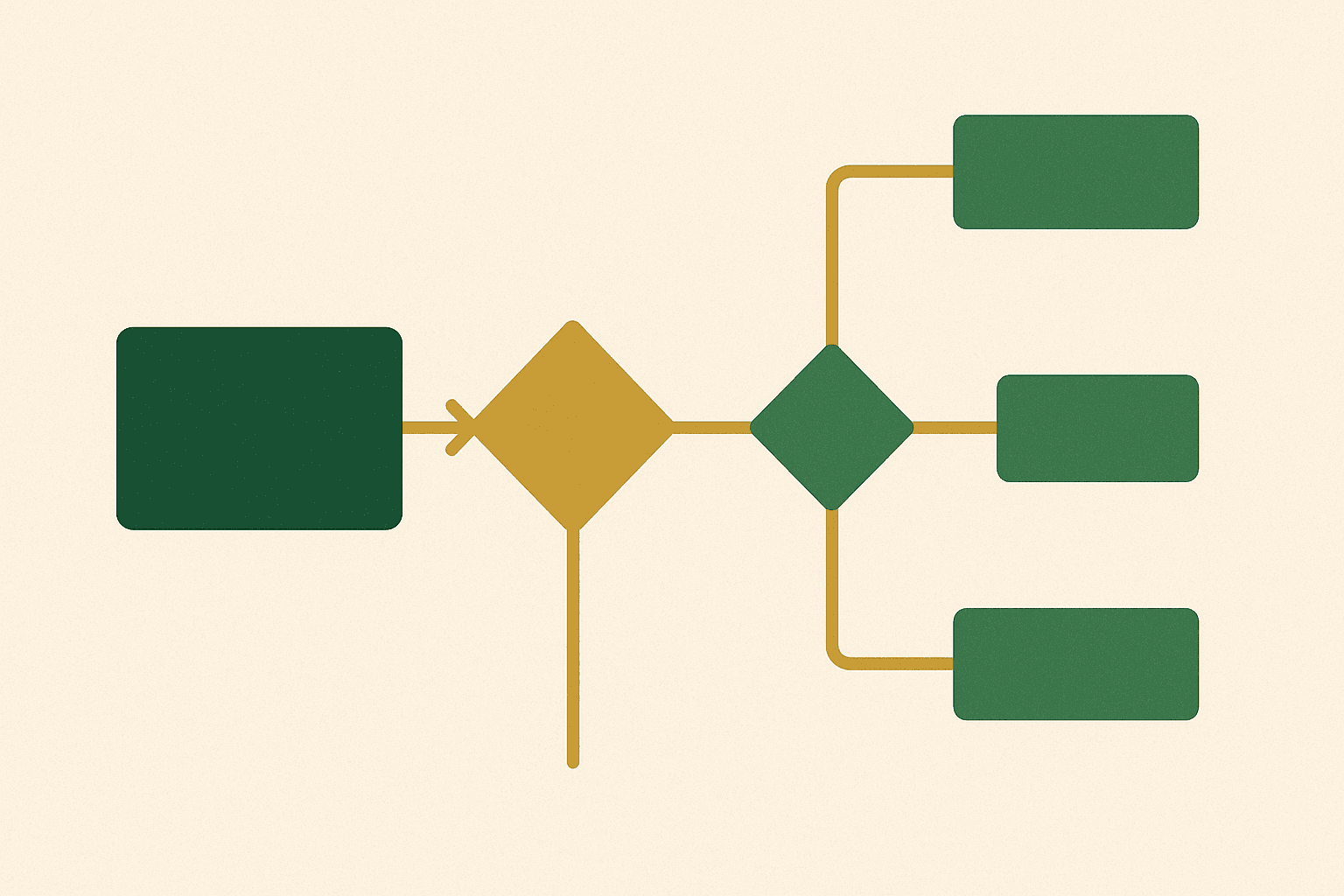
A sold-out product is not a problem — it is a signal of strong demand. The problem is letting that demand evaporate when you do not have a system to capture and convert it. Klaviyo's back-in-stock flow solves this by automatically collecting email addresses from interested customers and sending them a notification the moment inventory is replenished.
We implement back-in-stock flows as part of every Klaviyo setup we manage. The flow typically converts at 10-15%, making it one of the highest-performing automated emails in any ecommerce email programme.
This guide walks through the complete setup process, from enabling the feature to designing the notification email and optimising for maximum conversions.
Why back-in-stock notifications are essential
Without back-in-stock notifications, a sold-out product page is a dead end. The customer arrives, sees "Sold Out," and leaves. You have no way to recapture that visit unless they happen to return when the product is available again.
Back-in-stock notifications change this dynamic:
- Revenue recovery. Convert 10-15% of waitlist signups into purchases when inventory returns
- List building. Every signup is a new email subscriber with proven purchase intent
- Demand data. Waitlist size tells your buying team exactly how much inventory to reorder
- Customer retention. Giving customers a "Notify me" option prevents them from going to a competitor
- Zero effort after setup. The flow runs automatically — no manual intervention required
For brands that regularly sell out of popular SKUs — fashion, beauty, limited editions, seasonal products — this flow can add thousands to monthly revenue with zero ongoing management.

Prerequisites and setup checklist
Before setting up the flow, ensure you have:
- A Klaviyo account connected to your Shopify store
- Klaviyo's JavaScript snippet installed on your Shopify theme (automatic if installed via the Shopify App Store)
- Product catalogue synced between Shopify and Klaviyo
- Access to your Shopify theme files (for adding the signup form)
- At least one product that is currently out of stock (for testing)
Step 1: Enable back-in-stock in Klaviyo
- Log in to your Klaviyo account
- Navigate to Flows
- Click Create Flow
- In the flow library, search for "Back in Stock"
- Select the Back in Stock pre-built flow template
- Choose your Shopify store as the catalogue source
- Click Create Flow
Klaviyo creates the flow with a default email template. You will customise this in Step 4.
Configure back-in-stock settings
- Go to the Back in Stock section in Klaviyo (under the catalogue or integrations area)
- Set your notification window — how long after restocking Klaviyo should send notifications (default is 2 hours)
- Set the minimum inventory threshold — how many units must be available before triggering notifications (we recommend at least 5 to avoid notifying customers for tiny restocks that sell out immediately)
- Choose whether to notify all waitlisted subscribers at once or in batches (batching prevents a rush that sells out inventory before all subscribers can purchase)
Step 2: Add the signup form to your Shopify theme
The signup form displays a "Notify me when available" button on sold-out product pages. Klaviyo provides the embed code.
- In Klaviyo, go to Back in Stock > Installation
- Copy the provided JavaScript snippet
- In your Shopify admin, go to Online Store > Themes > Edit Code
- Open your product template file (typically
sections/main-product.liquid) - Locate the add-to-cart button area
- Add the Klaviyo back-in-stock snippet after the add-to-cart button, wrapped in a sold-out conditional:
{%- unless product.available -%}
  <div class="klaviyo-bis-trigger">
    <button class="btn btn-primary"
            data-variant-id="{{ product.selected_or_first_available_variant.id }}"
            data-product-title="{{ product.title | escape }}"
            data-product-image="{{ product.featured_image | image_url: width: 600 }}">
      Notify me when available
    </button>
  </div>
{%- endunless -%}
For variant-level tracking (essential for products with sizes or colours), you need to update the variant ID when the customer selects a different variant. Add JavaScript that listens for variant selection changes and updates the data-variant-id attribute.
Styling the form
Match the signup button and modal to your theme's design. Klaviyo's default styling is functional but generic. Customise the CSS to match your brand colours, typography, and button styles.
Step 3: Configure the flow trigger and filters
Return to the flow in Klaviyo and configure the trigger settings:
Trigger configuration
- Trigger: Back in Stock notification event
- Send immediately — do not add delays. Urgency is critical for back-in-stock emails
Flow filters
- Has not already purchased this product — prevents emailing customers who found the product elsewhere
- Has not been sent this email in the last 30 days — prevents repeat notifications for products that go in and out of stock frequently
Step 4: Design the notification email
The back-in-stock email has one job: get the customer to click through and buy before the product sells out again. Keep it focused.
Subject line
- "Great news — [Product Name] is back in stock"
- "It's back! [Product Name] just restocked"
- "You asked, we restocked: [Product Name]"
Email structure
- Hero image — large product photo
- Headline — "[Product Name] is back in stock"
- Brief copy — "You asked us to let you know. [Product Name] is available again, but stock is limited."
- Price — clearly displayed
- CTA button — "Shop Now" or "Get Yours Before It Sells Out"
- Urgency element — "This sold out last time — don't miss it again"
Use Klaviyo's dynamic data variables to automatically populate the product name, image, price, and URL from the back-in-stock event data. This means you design the template once and it works for every product.
Do not add other products, navigation menus, or promotional content to the back-in-stock email. This is a single-purpose notification. The fewer distractions, the higher the conversion rate.
Optional: Follow-up email
Add a second email 24 hours after the first for subscribers who did not click. Adjust the messaging to increase urgency: "Stock is going fast — your [Product Name] is still available, but not for long."
For more on email design principles, see our essential Klaviyo flows guide.
Step 5: Add SMS notifications
SMS back-in-stock notifications have even higher engagement than email. If you have SMS enabled in Klaviyo and subscribers with SMS consent, add an SMS step to your flow.
- In the flow builder, add an SMS step before or alongside the email step
- Keep the message short: "Hey [First Name]! [Product Name] is back in stock. Grab yours before it sells out: [link]"
- Add a conditional split to send SMS only to subscribers who have given SMS consent
SMS is particularly effective for back-in-stock because of the time sensitivity. Customers see SMS messages within minutes, giving them a head start before email subscribers react.
For UK brands, ensure your SMS practices comply with PECR and GDPR. Only send SMS to subscribers who have explicitly opted in for marketing text messages. See our managed Klaviyo services for guidance on compliance.
Optimisation strategies
Batch notifications for limited stock
If you restock with limited quantities (say 50 units) but have 500 waitlist subscribers, sending all 500 notifications at once means 450 people will arrive to find the product sold out again. Batch your notifications to match available inventory.
A/B test subject lines
Test different subject lines over time. Track which variants drive the highest open rates and click-through rates. Simple, direct subject lines typically outperform clever or creative ones for back-in-stock.
Track demand for purchasing decisions
Monitor your back-in-stock waitlist sizes in Klaviyo. Products with large waitlists should be prioritised for reorders. Share this data with your buying team.
Add to your product page strategy
Do not hide the notification signup behind a small link. Make the "Notify me" button as prominent as the add-to-cart button. For our Shopify theme builds, read more about product page strategy in our flow optimisation guide.
Common mistakes
1. Delayed notifications
Adding time delays to back-in-stock notifications reduces conversion rates dramatically. Send immediately — the customer has been waiting for this product.
2. Product-level tracking only
A customer who wants a size 10 in navy does not want to know that size 6 in red is back. Always track at the variant level.
3. No minimum inventory threshold
If you notify 200 people when only 3 units are restocked, you create 197 disappointed customers. Set a minimum inventory threshold before triggering notifications.
4. Cluttered email design
The notification email should feature one product with one CTA. Adding cross-sells, navigation, and other content dilutes the urgency and reduces conversion.
5. Forgetting to test
Before going live, test the entire flow: sign up for a notification on a sold-out product, update the inventory in Shopify, and verify the notification email arrives with the correct product data.
A back-in-stock flow in Klaviyo is one of the simplest high-impact automations you can set up. It takes under an hour to configure, runs entirely on autopilot, and converts at rates that most marketing emails can only dream of.
If your Shopify store sells out of popular products and you are not running this flow, you are leaving revenue on the table every single day.
Need help setting up your back-in-stock flow or optimising your overall Klaviyo strategy? Get in touch — we set this up for every client as standard.