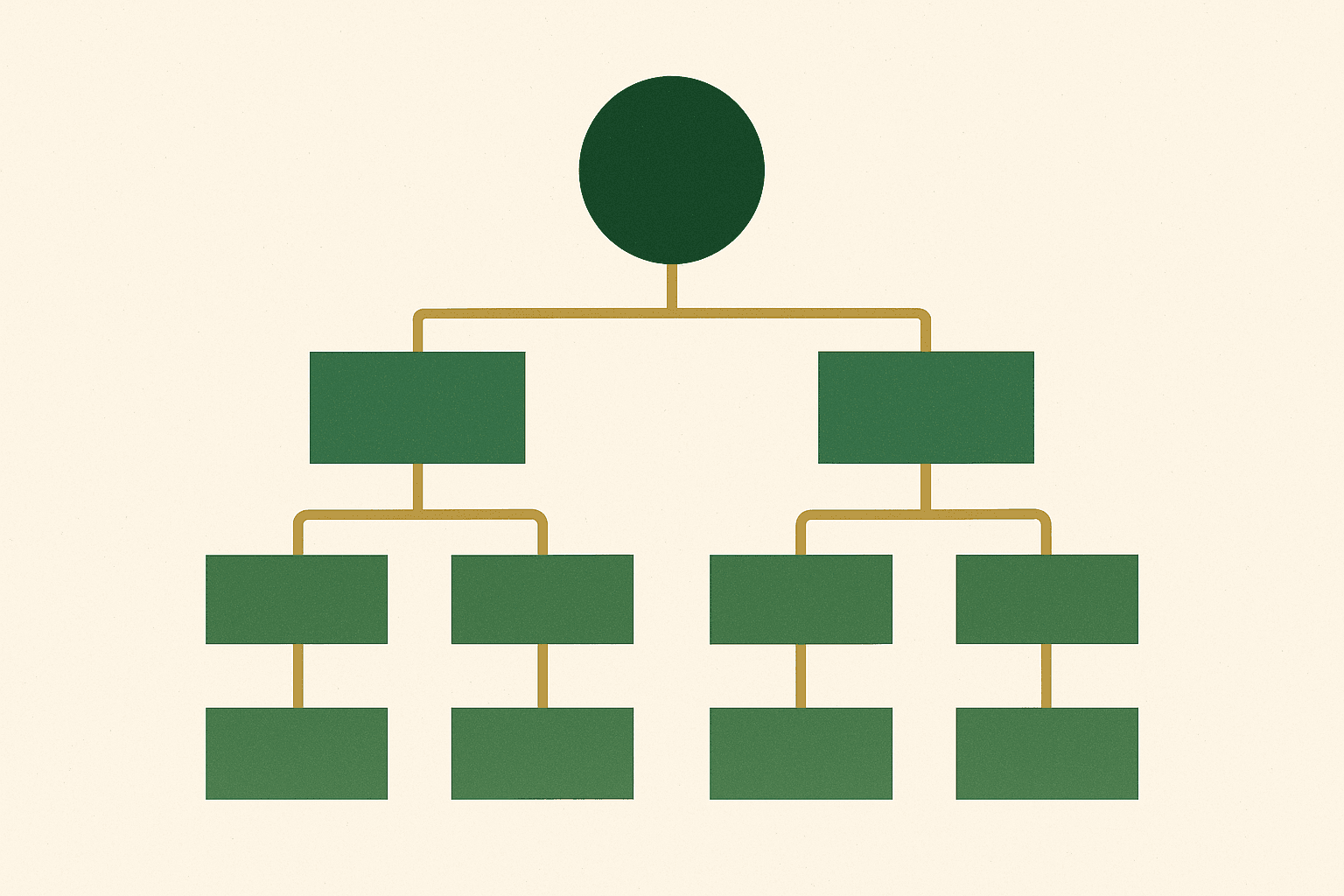
Product pages are where purchase decisions happen, and the amount of information a customer needs varies enormously. Some want a quick overview. Others want detailed specifications, ingredients, care instructions, or shipping information before they commit. Product tabs let you serve both types of customer by organising information into clean, scannable sections.
Without tabs, long product pages become walls of text that overwhelm casual browsers and bury critical information for detail-oriented shoppers. Tabs solve this by letting customers self-select the information they need, keeping the page clean whilst making everything accessible. This guide covers three methods for adding product tabs to your Shopify store, from quick app installations to fully custom Liquid implementations.
For more on optimising the overall product page experience, see our guide on improving product page conversions.
Why product tabs improve conversions
The case for product tabs is grounded in how customers actually browse product pages. Eye-tracking studies consistently show that customers scan product pages rather than reading them linearly. They look for specific pieces of information — ingredients, dimensions, shipping cost, care instructions — and skip everything else.
Benefits of tabbed product information
- Reduced cognitive load. Tabs break complex information into manageable chunks, preventing the overwhelm that drives customers away from information-dense pages.
- Faster information finding. Customers can jump directly to the tab that contains the information they need without scrolling through irrelevant content.
- Cleaner visual design. Tabs keep the above-the-fold area focused on the product image, title, price, and add-to-cart button — the elements that matter most for conversion.
- More content without clutter. You can include detailed specifications, care instructions, ingredient lists, and FAQ content without making the page feel overwhelming.
- Improved mobile experience. On mobile devices where screen space is limited, tabs are particularly valuable for organising content that would otherwise require extensive scrolling.

Planning your tab structure
Before implementing tabs, decide what information belongs in each tab and how many tabs you need. Too few tabs defeats the purpose; too many creates its own navigation problem.
Recommended tab structure
For most ecommerce stores, 3-5 tabs is the sweet spot. Here is a structure that works across most product types:
- Description — the main product description, benefits, and use cases. This is the default open tab.
- Details / Specifications — dimensions, weight, materials, ingredients, technical specs. Structured as a table or definition list for scannability.
- Shipping & Returns — delivery times, shipping costs, returns policy. This addresses one of the top reasons for cart abandonment.
- Reviews — customer reviews and ratings. Social proof at the point of decision is powerful.
- FAQ — product-specific frequently asked questions. Addresses common concerns that might prevent purchase.
Industry-specific considerations
- Fashion: Add a "Fit & Sizing" tab with size charts and fit advice. See our size guide guide.
- Food & supplements: Add a "Nutritional Information" or "Ingredients" tab.
- Electronics: Add a "Compatibility" or "What's Included" tab.
- Beauty: Add a "How to Use" tab with application instructions.
Method 1: Using a product tabs app
The fastest way to add product tabs is through a Shopify app. Several well-maintained options exist, ranging from free basic solutions to feature-rich paid apps.
Popular product tabs apps
- EasyTabs by Jeeves. One of the most popular options. Converts your product description headings into tabs automatically, or lets you create custom tabs with their own content.
- Tabs by Station. Simple, lightweight, and well-designed. Lets you create tabs from page content, metafields, or widget content.
- Product Tabs by HulkApps. Offers both static tabs (same on every product) and dynamic tabs (different content per product using metafields).
Installation process
- Install the app from the Shopify App Store
- Configure your tab names and order in the app settings
- Choose the content source for each tab (product description, metafield, page, or custom HTML)
- Customise the visual style to match your theme
- Preview on both desktop and mobile
- Check the page speed impact after installation

Method 2: Custom Liquid tabs section
For full design control and zero app dependencies, build product tabs as a custom Liquid section. This approach is more work upfront but gives you complete ownership of the implementation and avoids any performance overhead from third-party apps.
The HTML structure
<div class="product-tabs">
  <div class="product-tabs-nav" role="tablist">
    <button role="tab" aria-selected="true" aria-controls="tab-description"
      id="tab-btn-description" class="product-tab-btn active">
      Description
    </button>
    <button role="tab" aria-selected="false" aria-controls="tab-details"
      id="tab-btn-details" class="product-tab-btn">
      Details
    </button>
    <button role="tab" aria-selected="false" aria-controls="tab-shipping"
      id="tab-btn-shipping" class="product-tab-btn">
      Shipping & Returns
    </button>
  </div>

  <div role="tabpanel" id="tab-description" aria-labelledby="tab-btn-description"
    class="product-tab-panel active">
    {{ product.description }}
  </div>

  <div role="tabpanel" id="tab-details" aria-labelledby="tab-btn-details"
    class="product-tab-panel" hidden>
    {{ product.metafields.custom.specifications | metafield_tag }}
  </div>

  <div role="tabpanel" id="tab-shipping" aria-labelledby="tab-btn-shipping"
    class="product-tab-panel" hidden>
    {{ pages['shipping-returns'].content }}
  </div>
</div>
The JavaScript
document.querySelectorAll('.product-tab-btn').forEach(function(btn) {
  btn.addEventListener('click', function() {
    // Deactivate all tabs
    document.querySelectorAll('.product-tab-btn').forEach(function(b) {
      b.classList.remove('active');
      b.setAttribute('aria-selected', 'false');
    });
    document.querySelectorAll('.product-tab-panel').forEach(function(p) {
      p.classList.remove('active');
      p.hidden = true;
    });
    // Activate clicked tab
    this.classList.add('active');
    this.setAttribute('aria-selected', 'true');
    var panel = document.getElementById(this.getAttribute('aria-controls'));
    panel.classList.add('active');
    panel.hidden = false;
  });
});
Method 3: Metafield-driven tabs
The most maintainable approach for stores with varied product types is to drive tab content from metafields. This lets you have different tab content for every product while keeping the tab structure consistent across your theme.
Setting up metafields
- Go to Settings > Custom data > Products
- Add metafield definitions for each tab's content (e.g.,
custom.specifications,custom.ingredients,custom.care_instructions) - Use Rich text type for formatted content or Single-line text for simple entries
- Fill in the metafield data for each product in the product editor
Conditional tab rendering
The beauty of metafield-driven tabs is that you can conditionally render tabs only when content exists. If a product does not have care instructions, that tab simply does not appear. This keeps product pages clean and relevant without manual configuration per product.
{%- if product.metafields.custom.specifications != blank -%}
  <button role="tab" class="product-tab-btn">Specifications</button>
{%- endif -%}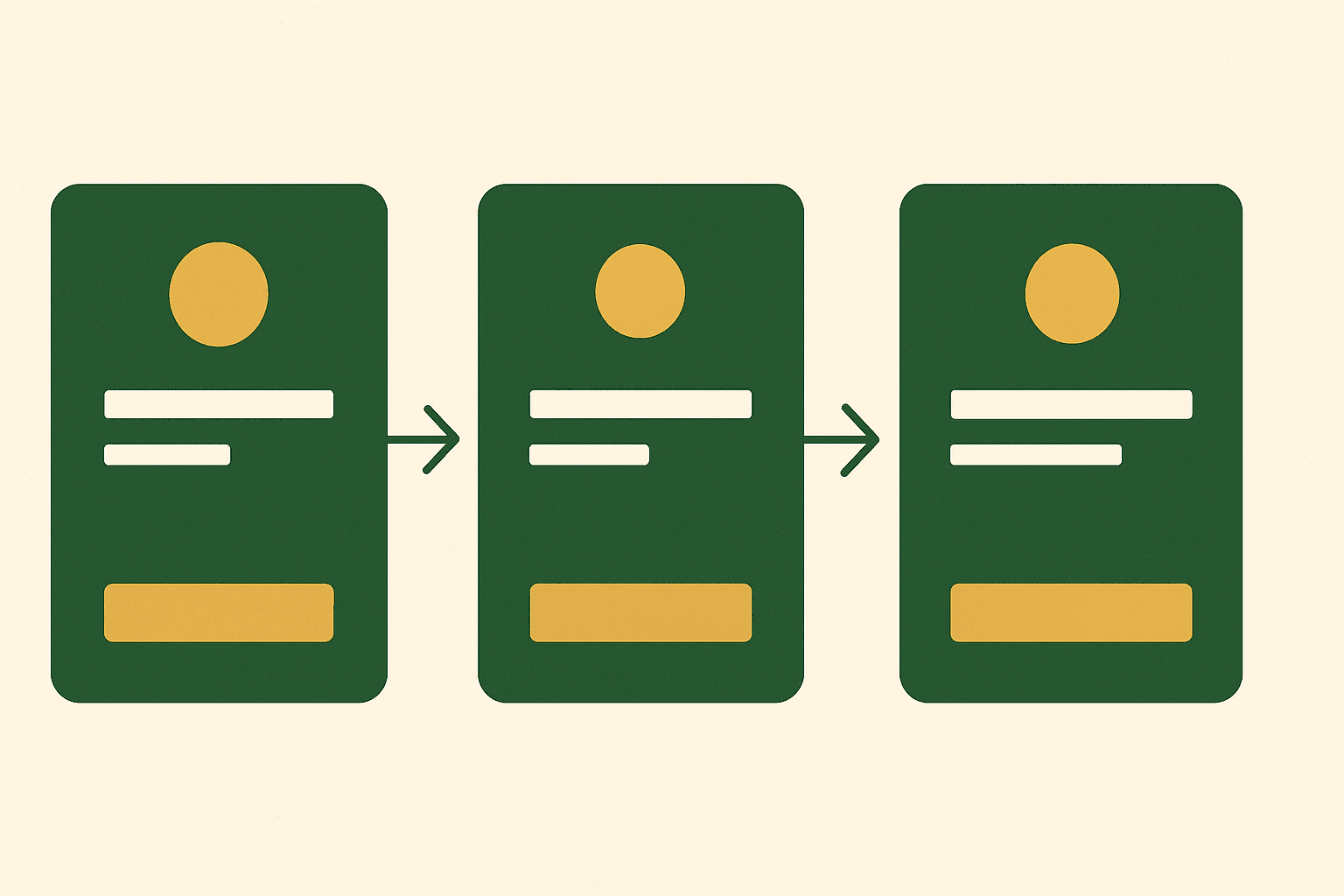
CSS for polished tab design
The visual design of your tabs should be clean, obvious, and consistent with your theme. Here is production-ready CSS for a polished tab component.
.product-tabs {
  margin-top: 32px;
  border-top: 1px solid #e5e5e5;
}

.product-tabs-nav {
  display: flex;
  gap: 0;
  border-bottom: 2px solid #e5e5e5;
  overflow-x: auto;
  -webkit-overflow-scrolling: touch;
}

.product-tab-btn {
  padding: 16px 24px;
  border: none;
  background: none;
  font-size: 0.95rem;
  font-weight: 500;
  color: #666;
  cursor: pointer;
  white-space: nowrap;
  position: relative;
  transition: color 0.2s ease;
}

.product-tab-btn:hover { color: #333; }

.product-tab-btn.active {
  color: #2D5A27;
  font-weight: 600;
}

.product-tab-btn.active::after {
  content: '';
  position: absolute;
  bottom: -2px;
  left: 0;
  right: 0;
  height: 2px;
  background: #2D5A27;
}

.product-tab-panel {
  padding: 24px 0;
  line-height: 1.7;
}

.product-tab-panel[hidden] { display: none; }
For more on styling Shopify elements, see our custom CSS guide.
Making tabs accessible
Tabs have specific accessibility requirements that you must implement for an inclusive experience and WCAG compliance. See our full Shopify accessibility guide for broader context.
Required ARIA attributes
role="tablist"on the tab button containerrole="tab"on each tab buttonrole="tabpanel"on each content panelaria-selected="true/false"on tab buttons to indicate the active tabaria-controlslinking each tab button to its panelaria-labelledbylinking each panel back to its button
Keyboard navigation
Users should be able to navigate between tabs using arrow keys (left/right for horizontal tabs), activate a tab with Enter or Space, and the focus should move to the tab panel content when a tab is activated. Implement this with a keydown event listener on the tablist container.

Mobile tab design considerations
On mobile devices, horizontal tabs can overflow the screen width. You have two options: allow horizontal scrolling of the tab bar (using overflow-x: auto), or convert tabs to an accordion layout on small screens. The accordion approach is often better for mobile because it eliminates the hidden content problem.
@media (max-width: 749px) {
  .product-tabs-nav {
    flex-direction: column;
    border-bottom: none;
  }
  .product-tab-btn {
    border-bottom: 1px solid #e5e5e5;
    text-align: left;
    padding: 16px;
  }
  .product-tab-btn.active::after {
    display: none;
  }
}
Content strategy for each tab
What you put in each tab matters as much as the tab structure itself. Each tab should contain focused, relevant content that serves a specific customer need.
Description tab
Lead with benefits, not features. Open with a compelling summary of what the product does for the customer, then provide supporting details. Include 2-3 lifestyle or benefit-focused sentences before diving into specifics. Link to related products where appropriate. For SEO guidance on descriptions, see our product description writing guide.
Details/Specifications tab
Use a structured format — tables or definition lists work best for specifications. Include dimensions, weight, materials, colour, capacity, compatibility, and any other quantifiable attributes. Customers comparing products across stores rely heavily on specification accuracy.
Shipping tab
Include delivery timeframes for each shipping method, costs or free shipping thresholds, international availability, and tracking information. Pull this content from a shared Shopify page so you only need to update it in one place when policies change.
Reviews tab
Embed your reviews widget within the reviews tab. Show the overall rating, total number of reviews, and the most recent reviews with images if available. Reviews in a tab feel less cluttered than reviews stacked below the main product information.
Dynamic content with metafields
Using metafields for tab content lets you create product-specific information that varies per product whilst maintaining a consistent tab structure. The combination of metafield definitions with conditional Liquid rendering creates a system that is both flexible and maintainable.
For a comprehensive guide to working with metafields, including setup, types, and rendering, read our metafields and metaobjects guide.
SEO considerations for tabbed content
There is a common concern that search engines cannot see content hidden behind tabs. In reality, Google can and does index content that is present in the HTML but visually hidden — as long as you are using CSS to hide it (not removing it from the DOM). Tabs that use display: none or the hidden attribute are fine because the content is still in the source code.
However, Google may give slightly less weight to hidden content. If you have critical SEO content (product descriptions, specifications with target keywords), consider keeping the first tab open by default and ensuring the most important content is in that default-visible tab.
Common mistakes to avoid
1. Too many tabs
Stick to 3-5 tabs. More than that creates a navigation burden within your product page that defeats the purpose of simplifying information.
2. Empty tabs
Never show a tab that leads to an empty panel. Use conditional rendering to only display tabs when content exists for that product.
3. Critical information hidden in tabs
Do not hide essential purchase information (price, availability, add-to-cart) behind tabs. Tabs are for supplementary information that supports the purchase decision.
4. Poor mobile experience
Test tabs thoroughly on mobile devices. If the tab labels are too long or the content panels are not properly responsive, the experience breaks down on small screens.
5. Ignoring accessibility
Tabs without proper ARIA roles and keyboard navigation exclude customers who use assistive technology and may expose you to legal compliance issues.
Product tabs are not just an organisational tool — they are a conversion tool. They let customers find the exact piece of information that removes their last purchase hesitation. The stores that get the most value from tabs are the ones that think carefully about what information goes where and why.
Andrew Simpson, Founder
Adding product tabs to your Shopify store improves the browsing experience, reduces information overload, and helps customers find the details they need to make a purchase decision. Whether you use an app for quick implementation or build a custom Liquid solution for full control, the key is planning your tab structure around your customers' actual information needs.
If you need help implementing custom product tabs or redesigning your product pages, our Shopify development team can help. Get in touch to discuss your project.