Shopify Flow is the most underutilised tool on the Shopify platform. It is free on every plan, it requires no coding, and it can automate dozens of manual tasks that are currently consuming your team's time. Yet most stores we audit either have no Flow workflows at all or have one or two basic ones that barely scratch the surface of what is possible.
This guide covers the specific automations that deliver the most value for UK ecommerce stores. Not theoretical examples from Shopify's template library, but real workflows we have implemented for clients that save measurable hours of manual work every week.
If your team is still manually tagging orders, checking inventory levels in spreadsheets, or copying customer data between systems, at least half of those tasks can be automated with Flow in an afternoon.
What Shopify Flow is and why it matters
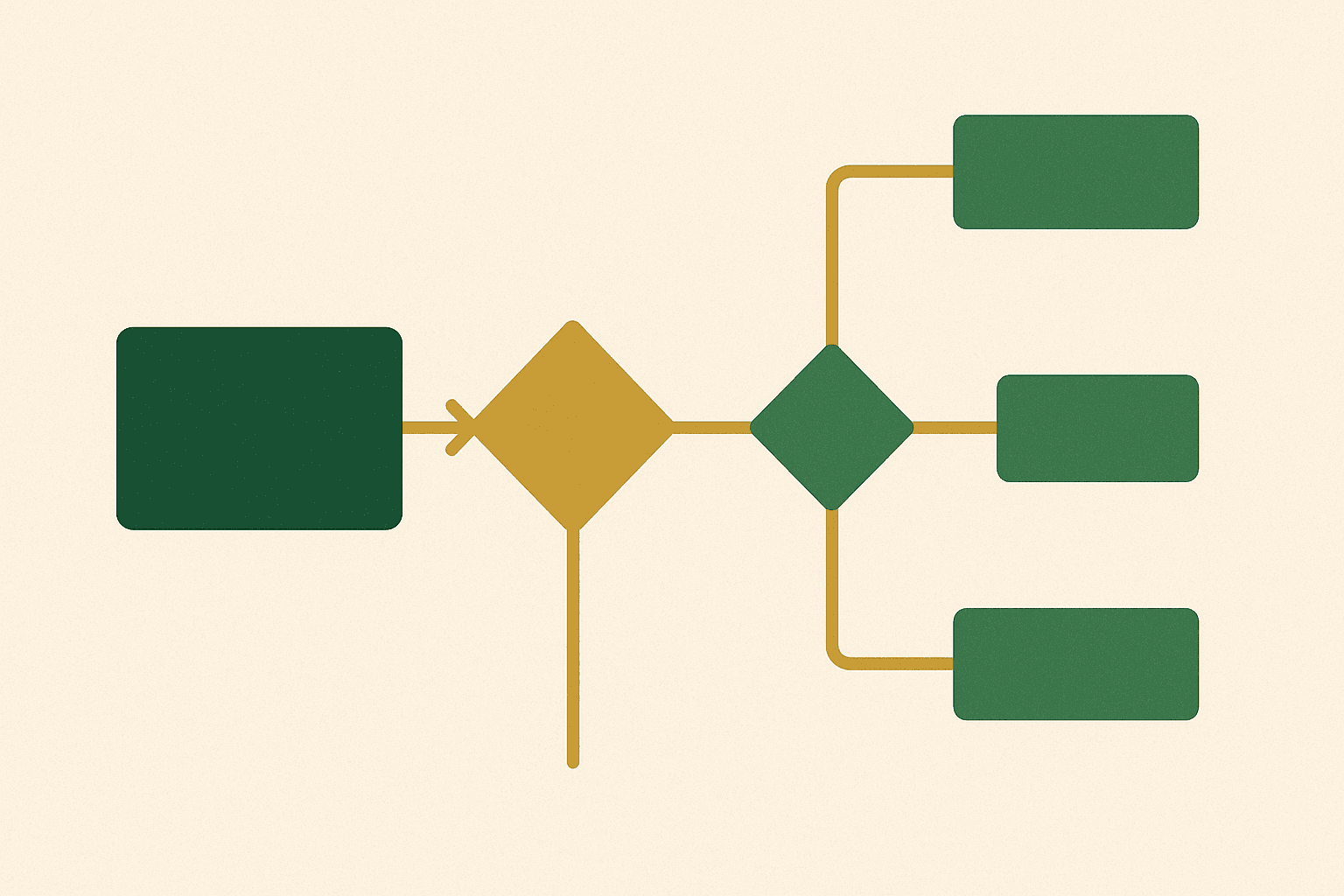
Shopify Flow is a visual automation builder that runs inside your Shopify admin. It lets you create workflows that automatically perform actions when specific events happen in your store. An order is placed, a product goes out of stock, a customer makes their third purchase — any of these events can trigger an automated response.
Flow became available to all Shopify plans in 2023 (it was previously exclusive to Shopify Plus). This change was significant because it brought enterprise-level automation to every Shopify merchant, regardless of plan. If you are on Basic Shopify and you are not using Flow, you are leaving free operational efficiency on the table.
Why automation matters at scale
Manual operational tasks do not scale. A store processing 20 orders per day can handle manual order tagging, inventory checks, and customer segmentation. A store processing 200 orders per day cannot. The choice is to hire more people or automate. Flow makes automation accessible without development cost.
The compounding effect is substantial. A single automation that saves 10 minutes per day saves over 60 hours per year. Ten automations saving 10 minutes each save 600 hours — roughly £10,000-£15,000 in labour cost at typical UK rates. And automations do not make mistakes at 5pm on a Friday.
How Flow works: triggers, conditions, actions
Every Flow workflow has three components:
- Trigger: The event that starts the workflow. Examples: order created, product inventory changed, customer created, draft order paid.
- Condition: Optional logic that checks whether the workflow should proceed. Examples: order total is greater than £100, product tag contains "fragile", customer has placed more than 3 orders.
- Action: What the workflow does. Examples: add a tag to the order, send an email notification, update a metafield, create a task.
Workflows can chain multiple conditions and actions together, creating sophisticated logic without code. The visual builder makes it straightforward to construct, test, and modify workflows.
// Conceptual Flow structure (not actual code — built visually)
TRIGGER: Order created
  CONDITION: Order total > £200
    AND: Customer order count = 1 (first order)
      ACTION: Add tag "high-value-first-order"
      ACTION: Send Slack notification to sales team
      ACTION: Add customer tag "VIP-prospect"
  CONDITION: Order total > £200
    AND: Customer order count > 1
      ACTION: Add tag "high-value-repeat"
      ACTION: Add customer tag "VIP"
Inventory management automations
Inventory automations are the highest-value workflows for most stores. They prevent stockouts, reduce overselling, and give your purchasing team early warning when stock levels are running low.
Low stock alerts
This is the single most valuable Flow automation for any store with physical products. When inventory for any variant drops below a threshold, Flow sends a notification to your purchasing team.
Trigger: Inventory quantity changed
Condition: Inventory quantity is less than or equal to [your threshold]
Action: Send internal email with product name, SKU, current stock level, and variant details
Set different thresholds for different products based on sales velocity. A best-seller that moves 20 units per day needs a higher threshold (100 units) than a slow mover that sells 2 per week (10 units). Use product tags to categorise products by velocity and set conditions accordingly.
Automatic hide when out of stock
When a product goes to zero stock across all variants, automatically remove it from your online sales channel. This prevents customers from seeing out-of-stock products in collections and search results, improving the browsing experience.
Trigger: Inventory quantity changed
Condition: Product inventory total equals 0
Action: Remove product from online store sales channel
Pair this with a reverse automation that republishes the product when stock is received. This creates a self-managing catalogue that only shows available products without any manual intervention.
Restock notifications
When new stock is received (inventory quantity increases from zero), automatically republish the product and notify your marketing team so they can promote the restocked item. If you use Klaviyo, this can trigger a back-in-stock email to customers who have signed up for notifications — connecting your checkout customisation and marketing automation seamlessly.
Order management automations
Order management workflows handle the operational tasks that happen between a customer placing an order and receiving their delivery. These are the tasks that consume the most staff time and are most prone to human error.
Order tagging for fulfilment routing
If you fulfil orders from multiple locations, use different carriers for different product types, or have different processing workflows for different order types, Flow can automatically tag orders with the correct routing information.
Trigger: Order created
Condition: Order contains product with tag "oversized"
Action: Add order tag "pallet-delivery"
Condition: Order shipping address country is not "GB"
Action: Add order tag "international"
Condition: Order contains product with tag "personalised"
Action: Add order tag "production-queue"
These tags then drive your fulfilment team's workflow. They filter the orders list by tag to see exactly which orders need which handling. No manual sorting, no missed orders, no wrong carrier assignments.

High-value order alerts
When an order exceeds a certain value, notify your team immediately. High-value orders may warrant personal follow-up, priority fulfilment, or additional quality checks before shipping. The threshold depends on your average order value — set it at roughly 3-5x your AOV to catch genuinely significant orders.
Gift order handling
Orders with gift messages or gift wrapping selections need different handling in the warehouse. Flow can tag these orders, add a note to the order visible to the fulfilment team, and optionally send a notification to ensure the gift-specific requirements are not missed. This is particularly valuable during peak periods when temporary warehouse staff may not be familiar with your gift handling procedures. Connecting this with your B2B operations ensures wholesale and retail orders are routed correctly.
Customer tagging and segmentation
Customer tagging automations are essential for effective marketing. They create the segments that drive personalised email campaigns, targeted advertising, and loyalty programmes.
Purchase-based tagging
Automatically tag customers based on their purchase behaviour:
- First-time buyer: Tag customers after their first order for welcome sequences
- Repeat customer: Tag after second order for loyalty offers
- VIP: Tag after total spend exceeds a threshold (e.g., £500)
- Product category affinity: Tag based on what categories they have purchased from (e.g., "bought-skincare", "bought-fragrance")
- Lapsed customer: Tag if no order in 90+ days (using a scheduled workflow)
These tags feed directly into your email marketing platform. If you use Klaviyo, customer tags sync automatically and can be used as segment conditions. A customer tagged "VIP" in Shopify appears in Klaviyo segments without any additional setup, enabling targeted campaigns and flows.
Geographic segmentation
Tag customers by region for geo-targeted campaigns. A UK-based brand might tag customers by country for international campaigns, or by postcode prefix for regional offers. This is particularly useful for brands with physical retail presence who want to promote in-store events to nearby customers.
Fraud prevention workflows
Flow can significantly reduce fraud losses by automatically flagging suspicious orders for manual review before they are fulfilled.
Fraud risk flagging
Trigger: Order created
Condition: Order risk level is "high" (based on Shopify's fraud analysis)
Action: Add order tag "fraud-review"
Action: Send notification to operations team
Action: Add order note "HIGH RISK - Do not fulfil until reviewed"
This workflow ensures that high-risk orders are never shipped without human review. The order tag prevents the fulfilment team from processing it, and the notification ensures someone reviews it promptly.
Velocity checks
Multiple orders from the same email address or IP address within a short period can indicate fraud or abuse. While Flow cannot directly check IP addresses, it can detect multiple orders from the same customer and flag them for review.
Product management automations
Product management automations handle the catalogue maintenance tasks that are easy to forget and tedious to do manually.
Automatic collection management
When a product is tagged with a specific tag, automatically add it to the corresponding collection. When the tag is removed, remove it from the collection. This keeps your collections current without manual maintenance.
While Shopify's automated collections handle simple tag-based rules natively, Flow can handle more complex logic: add to a "New Arrivals" collection when created, then remove after 30 days. Or add to a "Sale" collection when a compare-at price is set, and remove when it is cleared.
Product data validation
When a new product is created, check that required fields are populated: does it have a description? Does it have at least one image? Does it have a weight set? If any required fields are missing, tag the product as "incomplete" and notify the merchandising team. This prevents half-finished products from appearing on the storefront.
This kind of data validation becomes even more powerful when paired with a lean app stack that does not interfere with your product data integrity.
Third-party app integrations
Flow becomes significantly more powerful when connected to third-party apps. Many popular Shopify apps have built Flow connectors that add custom triggers and actions.
Klaviyo integration
Trigger Klaviyo flows based on Shopify events that Klaviyo does not natively track. For example, trigger a specific email sequence when a customer is tagged "VIP" by a Flow workflow. Or send customer data to a Klaviyo list when specific order conditions are met.
Gorgias integration
Automatically create support tickets in Gorgias when Flow detects specific conditions: a high-value order (proactive outreach), a repeat return (quality check), or a first-time international order (customs information).
HTTP requests for custom integrations
For apps and services without native Flow connectors, use the "Send HTTP request" action to call external APIs. This opens up integration with virtually any system: Slack channels, Google Sheets, custom dashboards, ERP systems, and warehouse management platforms.
// Flow HTTP request action example
// Send order data to an external system
Action: Send HTTP request
URL: https://your-api.example.com/orders
Method: POST
Headers: {
  "Authorization": "Bearer your-api-key",
  "Content-Type": "application/json"
}
Body: {
  "order_id": "{{ order.id }}",
  "total": "{{ order.total_price }}",
  "customer_email": "{{ order.customer.email }}"
}
This capability means Flow can serve as a lightweight integration layer, connecting Shopify to systems that would otherwise require custom development. For more complex integration needs, particularly with ERP systems, see our guide to Shopify development and integration services.
Best practices and debugging
Naming conventions
Name your workflows descriptively. "Workflow 1" tells you nothing six months later. Use a consistent format: "[Category] [Action] [Condition]". For example: "Inventory - Low stock alert - Under 20 units" or "Orders - Tag international - Non-GB shipping".
Testing before activation
Flow provides a "Run" section that shows the execution history of each workflow. Before activating a workflow on your live store, test it with a test order or product change on your development store. Check the run log to verify each condition evaluated correctly and each action executed as expected.
Avoiding infinite loops
Be careful with workflows that modify the same entity they are triggered by. For example, a workflow triggered by "product updated" that updates a product metafield will trigger itself again. Use conditions to prevent this: check whether the metafield already has the value you are about to set, and only proceed if it does not.
Performance considerations
Flow workflows execute asynchronously — they do not block the event that triggered them. However, complex workflows with many actions can take time to complete. If you need actions to execute in a specific order, use the built-in "Wait" action to add delays between steps. Keep workflows focused: one workflow per business process rather than one massive workflow that tries to handle everything.
Documentation
Document what each workflow does, why it was created, and what business process it supports. Shopify Flow does not have built-in documentation features, so maintain a simple spreadsheet or document that maps workflows to business requirements. This is invaluable when someone needs to modify or troubleshoot a workflow months after it was created.
The best-run Shopify stores are not the ones with the most staff. They are the ones that have automated every repeatable operational task so their team can focus on the work that actually requires human judgement: merchandising, strategy, and customer relationships.
Andrew Simpson, Founder
Shopify Flow is a free tool that most stores are not using to its full potential. The automations in this guide represent the foundational workflows that every growing store should have in place. They save time, reduce errors, and create the operational infrastructure that lets you scale without proportionally scaling your team.
Start with the highest-value automations — low stock alerts, order tagging, and customer segmentation — and build from there. If you need help setting up more complex workflows or integrating Flow with your existing systems, get in touch. We build automation strategies as part of our ongoing Shopify development partnerships.