The checkout is where revenue lives or dies. Every friction point, every moment of hesitation, every unnecessary field costs you money. And yet, most Shopify merchants never touch their checkout beyond the default configuration.
The opportunity is significant. Industry data consistently shows that checkout optimisation can improve conversion rates by 5-15%. On a store doing £500,000 in annual revenue, that is £25,000-£75,000 in additional sales — from changes that take hours to implement, not months.
This guide covers every customisation available to you, from the branding options on every Shopify plan to the advanced Checkout Extensibility features on Shopify Plus. More importantly, it covers what to change and what to leave alone — because not every customisation improves conversion. For our detailed checkout strategy guide, see our Shopify Plus checkout customisation guide.
Why checkout customisation matters
The average checkout abandonment rate across ecommerce is approximately 70%. That means for every 10 customers who reach your checkout, 7 leave without completing their purchase. Even small reductions in this abandonment rate have an outsized impact on revenue.
The most common reasons for checkout abandonment are:
- Unexpected costs (shipping, taxes, fees) — 47% of abandonments
- Required account creation — 25% of abandonments
- Complicated checkout process — 18% of abandonments
- Security concerns — 17% of abandonments
- Insufficient payment methods — 9% of abandonments
Every customisation you make should address one of these friction points. If a change does not reduce friction or increase trust, it does not belong in your checkout.
What you can change on every Shopify plan
Even without Shopify Plus, you have meaningful control over your checkout experience. Navigate to Settings > Checkout and Online Store > Themes > Customise > Checkout to access these options.
Customer account settings
- Guest checkout: Always enable this. Requiring account creation is the second-biggest conversion killer.
- Login option: Offer it but do not force it. "Log in for faster checkout" is fine. "Create an account to continue" is not.
Form configuration
- Company name field: hide it unless you sell B2B
- Address line 2: make optional, never required
- Phone number: make optional unless needed for delivery
- Shipping address as billing: enable auto-fill by default
Tipping
Available for all plan levels. Enable tipping if it is appropriate for your brand (food delivery, artisan goods). Disable it for standard retail — it feels out of place and adds decision friction.
Checkout branding and design
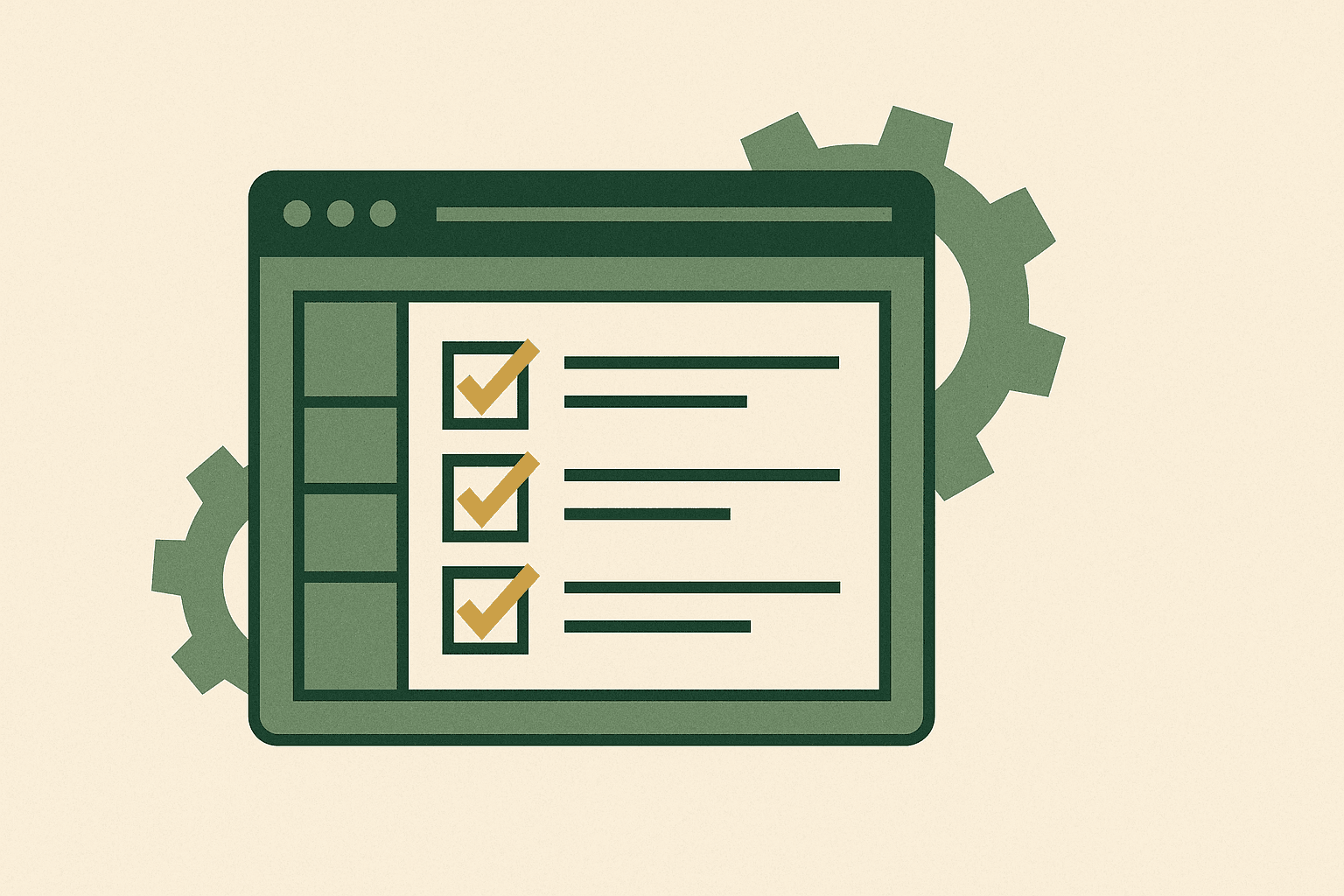
Your checkout should feel like a seamless extension of your store, not a generic payment page. Go to Online Store > Themes > Customise, then navigate to the checkout pages.
What you can customise
- Logo: Add your logo to the checkout header. Keep it reasonably sized — it should reassure, not dominate.
- Colours: Match your brand's primary and accent colours. Use your brand colour for the primary button — this maintains visual continuity from cart to checkout.
- Typography: Use the same fonts as your storefront. Font inconsistency between store and checkout erodes trust.
- Background: Subtle colours or patterns work. Busy backgrounds are distracting and can make form fields harder to read.
- Header banner: Add a banner for trust messaging ("Free UK delivery on orders over £50") or urgency ("Order within 2 hours for next-day delivery").
/* Recommended checkout branding approach */
const checkoutBranding = {
  logo: 'Your logo, max 200px wide',
  primaryColour: '#2D5A27',        // Match your brand
  buttonColour: '#2D5A27',         // Same as primary
  buttonTextColour: '#FFFFFF',
  backgroundColour: '#FAFAF8',     // Subtle, not white
  fontFamily: 'DM Sans',          // Match your storefront
  cornerRadius: '4px',            // Match your button style
  headerBanner: 'Free UK delivery on orders over £50'
};
Checkout Extensibility explained
Checkout Extensibility is Shopify's modern framework for checkout customisation. It replaced the deprecated checkout.liquid (which Shopify Plus merchants previously used for full checkout customisation) with a more structured, secure, and upgrade-safe approach.
Key components
- Checkout UI Extensions: Add custom UI components to specific areas of the checkout. These run in a sandboxed environment, meaning they cannot break the core checkout experience.
- Shopify Functions: Server-side logic that runs during checkout. Used for custom discount logic, payment customisation, and delivery customisation.
- Post-purchase Extensions: Add content between the payment confirmation and the thank-you page. Most commonly used for upsells.
- Web Pixels: Custom tracking and analytics that respect customer privacy settings.
What you can build with Checkout Extensibility
// Example: Custom banner checkout UI extension
import {Banner, useSettings} from '@shopify/checkout-ui-extensions-react';

export default function CustomBanner() {
  const {title, description, status} = useSettings();

  return (
    <Banner
      title={title || 'Free delivery on orders over £50'}
      status={status || 'info'}
    >
      {description}
    </Banner>
  );
}
Adding trust signals
Trust signals at checkout directly address the 17% of customers who abandon due to security concerns. These are the most impactful trust elements for UK ecommerce checkouts:
- Payment security badges: Visa, Mastercard, and PayPal logos reassure customers their payment details are safe.
- SSL indicator: While browsers already show this, explicitly mentioning "Secure checkout" reinforces the message.
- Returns policy: A brief mention like "Free returns within 30 days" reduces purchase anxiety.
- Customer service contact: Showing a phone number or live chat option builds confidence.
- Delivery information: Clear delivery timeframes ("Order now, delivered by Thursday") reduce uncertainty.
For more on checkout optimisation, read our checkout optimisation guide and our guide to reducing cart abandonment on Shopify.
Checkout and post-purchase upsells
Checkout upsells are one of the most effective revenue-per-session improvements you can make. The customer has already committed to buying — they are in purchasing mode, and the friction of adding another item is minimal.
Pre-purchase upsells
Shown during the checkout process, before payment. These work best for low-cost complementary items:
- Gift wrapping service
- Product protection/warranty
- Sample or travel-size add-ons
- Priority shipping upgrade
Post-purchase upsells
Shown after payment confirmation but before the thank-you page. The customer can add items to their existing order without re-entering payment details. This is available through the post-purchase extension API.
Upsell best practices
- Keep the upsell offer relevant to what the customer just bought
- Price the upsell at 10-25% of the order value — low enough to be an impulse add
- Limit to one offer. Multiple upsells feel aggressive and create decision fatigue.
- Show the discount clearly if applicable ("Add for just £5.99 — 40% off")
- Make it easy to decline — "No thanks" should be prominent

One-page vs. three-page checkout
Shopify now offers a one-page checkout option alongside the traditional three-page flow. The evidence on which performs better is nuanced:
| Factor | One-page | Three-page |
|---|---|---|
| Perceived speed | Faster (fewer page loads) | Slower |
| Form completion | Can feel overwhelming | Broken into manageable steps |
| Analytics granularity | Less (single page) | More (can track drop-off per step) |
| Mobile experience | Long scroll | Focused steps |
| Best for | Low-AOV, simple orders | High-AOV, complex orders |
Our recommendation: test both with your specific audience. There is no universal answer. The data from your store matters more than general benchmarks.
Optimising payment methods
Offering the right payment methods for your market is critical. In the UK, ensure you support:
- Credit/debit cards (via Shopify Payments)
- Apple Pay and Google Pay — accelerated checkout reduces friction significantly
- PayPal — still preferred by a significant segment of UK shoppers
- Klarna or Clearpay — buy-now-pay-later options increase conversion for higher AOV products
- Shop Pay — Shopify's accelerated checkout with saved payment details
Enable dynamic payment buttons (the coloured buttons above the main checkout button) to surface these options early. On mobile, Apple Pay and Google Pay buttons can bypass the entire form-filling process, dramatically reducing checkout friction.
Adding custom fields
Sometimes you need information that Shopify's default checkout does not collect. Common examples include gift messages, delivery instructions, purchase order numbers, and date selection for deliveries.
On Shopify Plus, custom fields can be added through checkout extensions. On standard plans, you can use the cart page to collect custom information via cart attributes or line item properties, which then carry through to the checkout and appear on the order.
<!-- Example: Adding a gift message via cart attributes -->
<div class="cart-gift-message">
  <label for="gift-message">Gift message (optional)</label>
  <textarea
    id="gift-message"
    name="attributes[Gift Message]"
    rows="3"
    maxlength="200"
    placeholder="Write a personal message..."
  ></textarea>
  <small>200 characters maximum</small>
</div>
Testing checkout changes
Never make checkout changes without measuring the impact. Here is our testing framework:
- Baseline. Record your current checkout completion rate, abandonment rate, and checkout-to-purchase conversion for at least two weeks.
- Single change. Make one change at a time. Multiple simultaneous changes make it impossible to attribute results.
- Sufficient data. Wait until you have at least 200 checkout completions before drawing conclusions. Small samples produce unreliable results.
- Monitor abandonment. Check where customers are dropping off in the checkout flow. Shopify's analytics show this for three-page checkouts.
Mistakes that kill conversion
1. Too many form fields
Every additional field reduces completion rate. If you do not absolutely need it for fulfilment or compliance, remove it.
2. Surprise shipping costs
Display shipping costs as early as possible. Ideally, show them on the product page or in the cart before the customer reaches checkout.
3. Aggressive upselling
One relevant upsell offer is effective. Three pop-ups, a timer, and a "customers also bought" carousel is obnoxious. The checkout is for completing the purchase, not for a sales pitch.
4. Missing express payment
If Apple Pay, Google Pay, and Shop Pay are not enabled, you are losing mobile conversions. These accelerated checkout options can improve mobile conversion by 10-20%.
5. No mobile testing
Over 70% of ecommerce traffic is mobile. If you only test your checkout customisations on desktop, you are optimising for the minority of your customers.
The best checkout is the one the customer barely notices. Every customisation should reduce friction, not add novelty. If a change makes the checkout feel more complex, remove it — no matter how clever it is.
Andrew Simpson, Founder
Checkout customisation is one of the highest-ROI investments you can make in your Shopify store. Start with the basics — branding, form simplification, and payment methods — before moving to advanced features like checkout extensions and post-purchase upsells.
If you need expert help with Shopify checkout customisation, from basic branding to complex Checkout Extensibility implementations, get in touch. We will help you build a checkout that converts.